
Where can I play?
Undermine Squad runs in the browser, with no download, account or app store. Open undermine-squad.com/spielen and play. If you like, install it as an app: it then has its own icon, starts full screen and also works without internet.
On a computer in the browser
Section titled “On a computer in the browser”On a PC, Mac, Linux or a Chromebook you play in an up-to-date browser:
| Browser | Play | Install as an app |
|---|---|---|
| Google Chrome | yes | yes, with the install icon in the address bar |
| Microsoft Edge | yes | yes, the same way |
| Mozilla Firefox | yes | no install button; you play in the browser as usual |
| Safari (Mac) | yes | yes, from Safari 17 via File → Add to Dock |
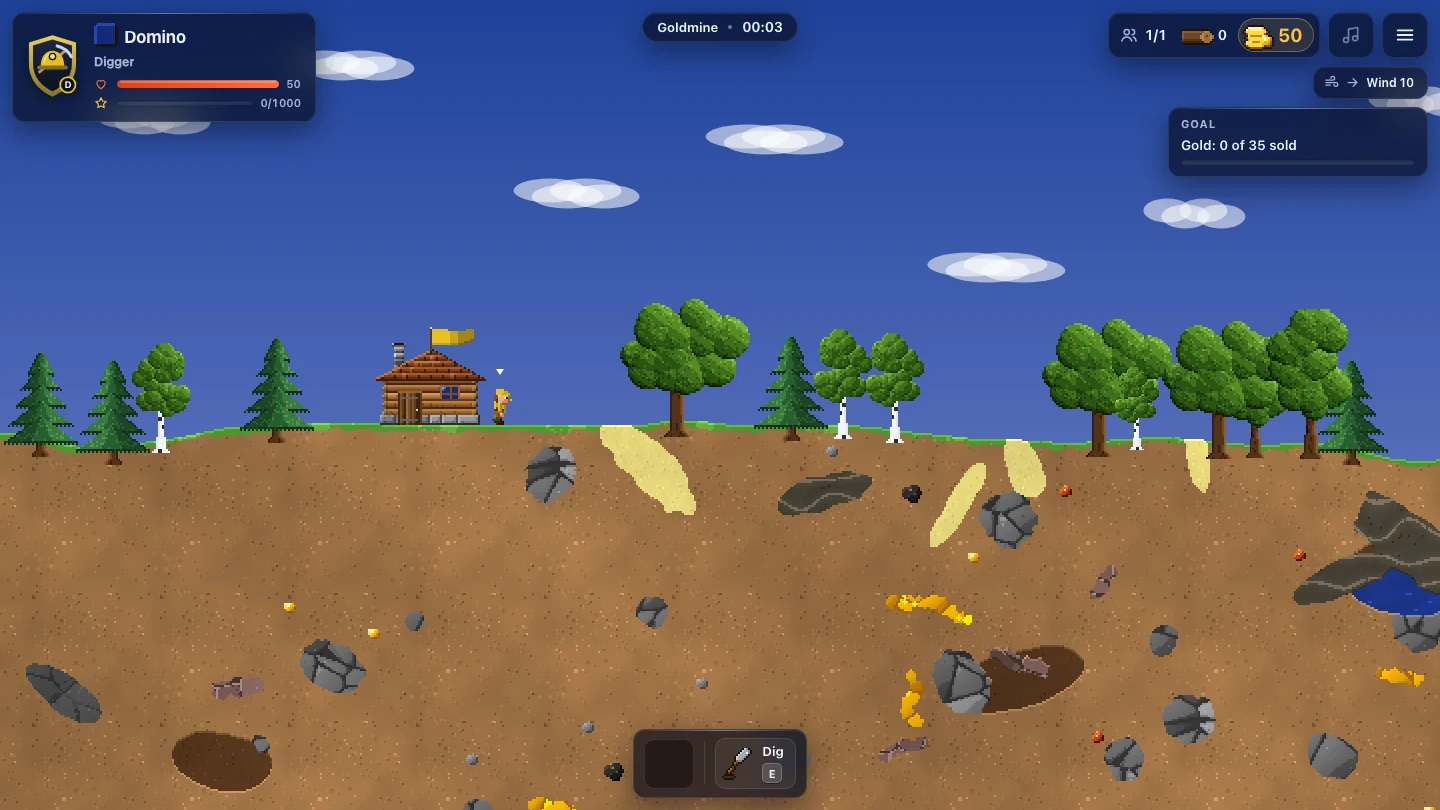
You control the game with keyboard and mouse: WASD or arrow keys, E digs, Q throws, a right click opens the context menu. Every key is listed under Controls.
On phones and tablets
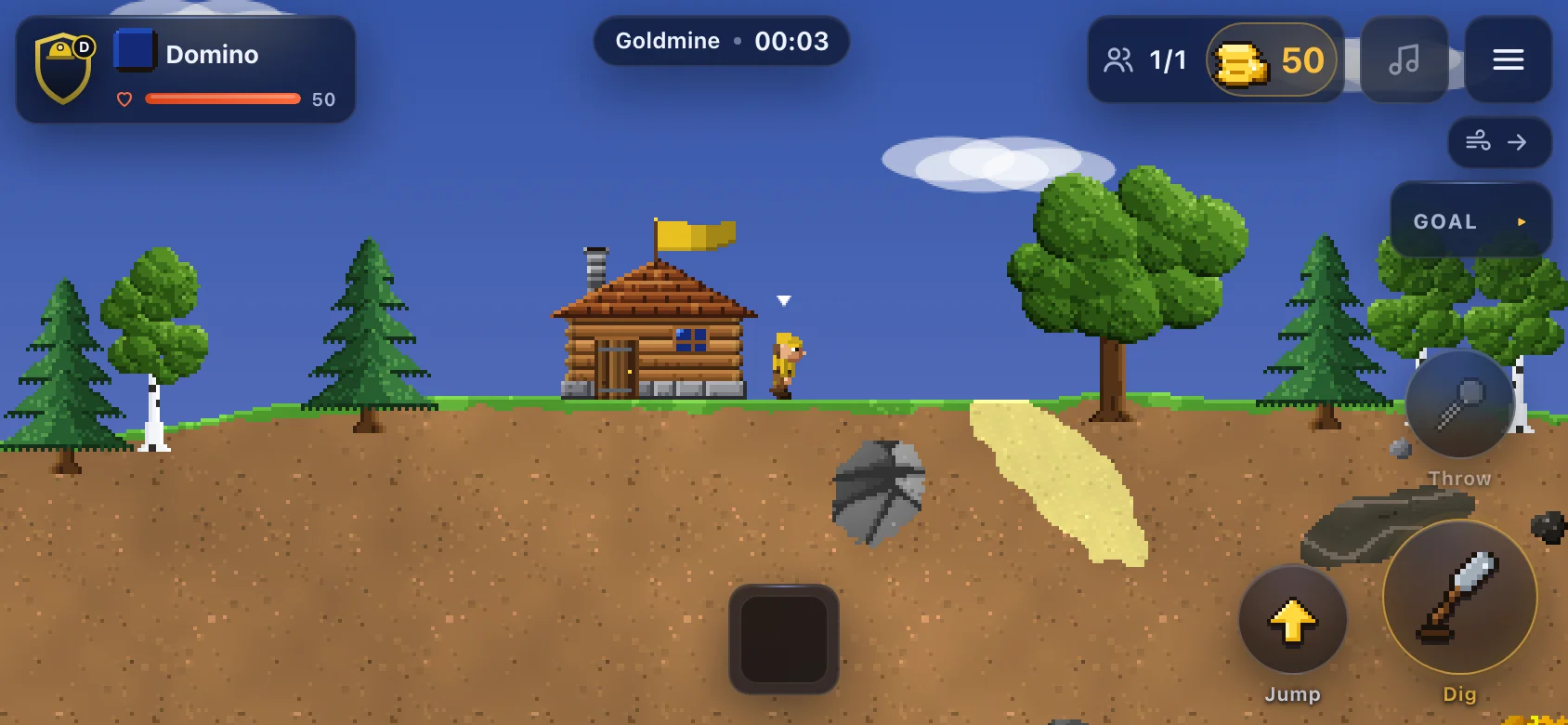
Section titled “On phones and tablets”On Android, iPhone and iPad you play in the browser with touch. The game detects the device and shows the right controls: a stick on the left and big buttons on the right on phones, an action bar on tablets. Hold the device in landscape for the best view. More under Phone and tablet.
With a gamepad
Section titled “With a gamepad”A controller via USB or Bluetooth works on computers, tablets and phones, for example an Xbox or PlayStation controller. Connect it and press a button, the game will report it. Layout: stick or d-pad walks, A jumps, X digs, B throws, Y is the double action, LB and RB switch the digger, Start pauses. The full table is under Phone and tablet.
Install as an app
Section titled “Install as an app”Undermine Squad is a web app (PWA). Installed, it gets its own icon on the Home Screen, in the Dock, the taskbar or the Start menu, starts without the browser bar and, once loaded, also works offline.
On computers and Android, app and browser share saved games and crew. On iPhone and iPad the app has its own storage; take your crew along with Main menu → Crew → crew file.
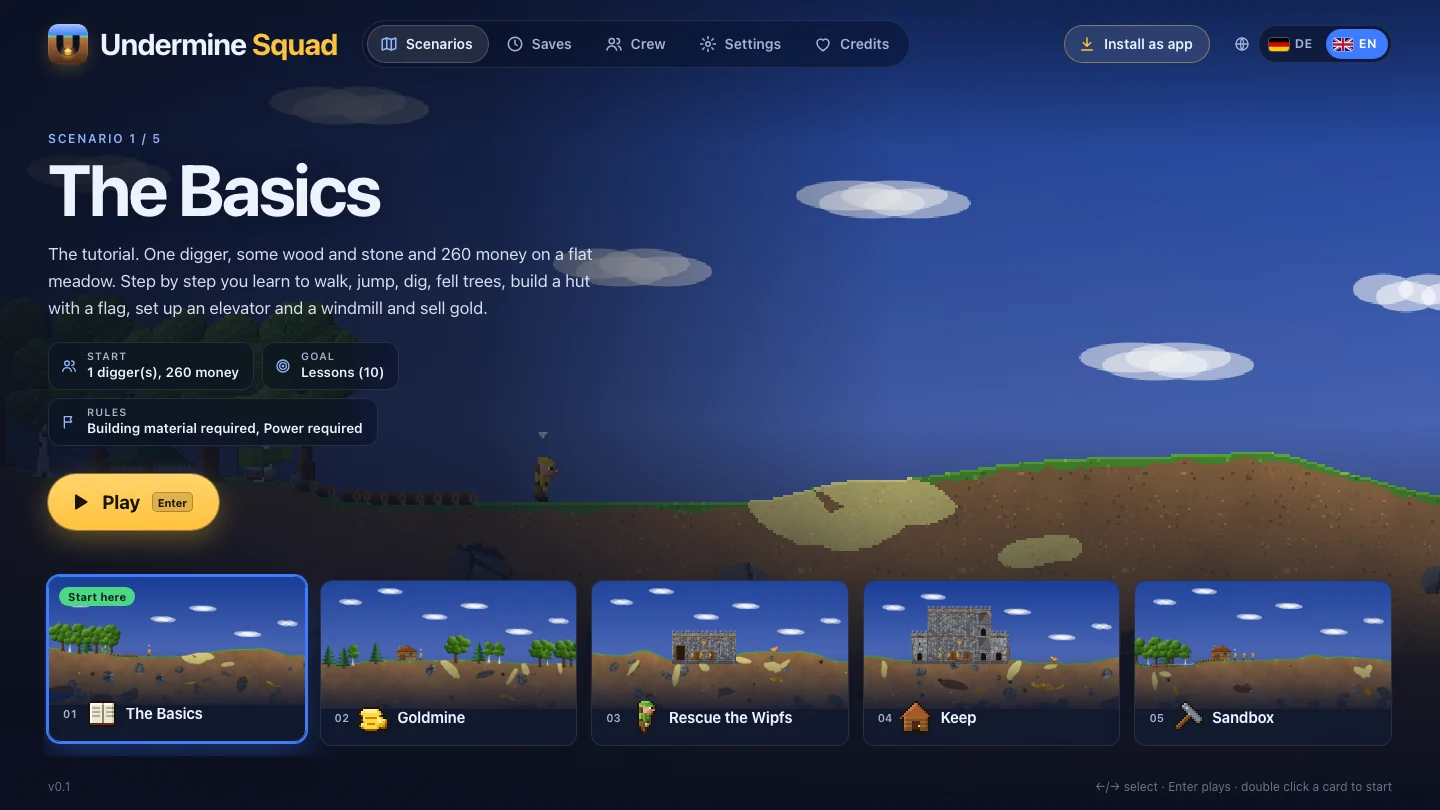
The main menu shows Install as app at the top right when your browser supports it. On iPhone, iPad and Mac the button explains how. If the game is already installed, the button is gone.
Chrome and Edge on a computer
Section titled “Chrome and Edge on a computer”This works on Windows, macOS, Linux and ChromeOS:
-
Open undermine-squad.com/spielen in Chrome or Edge.
-
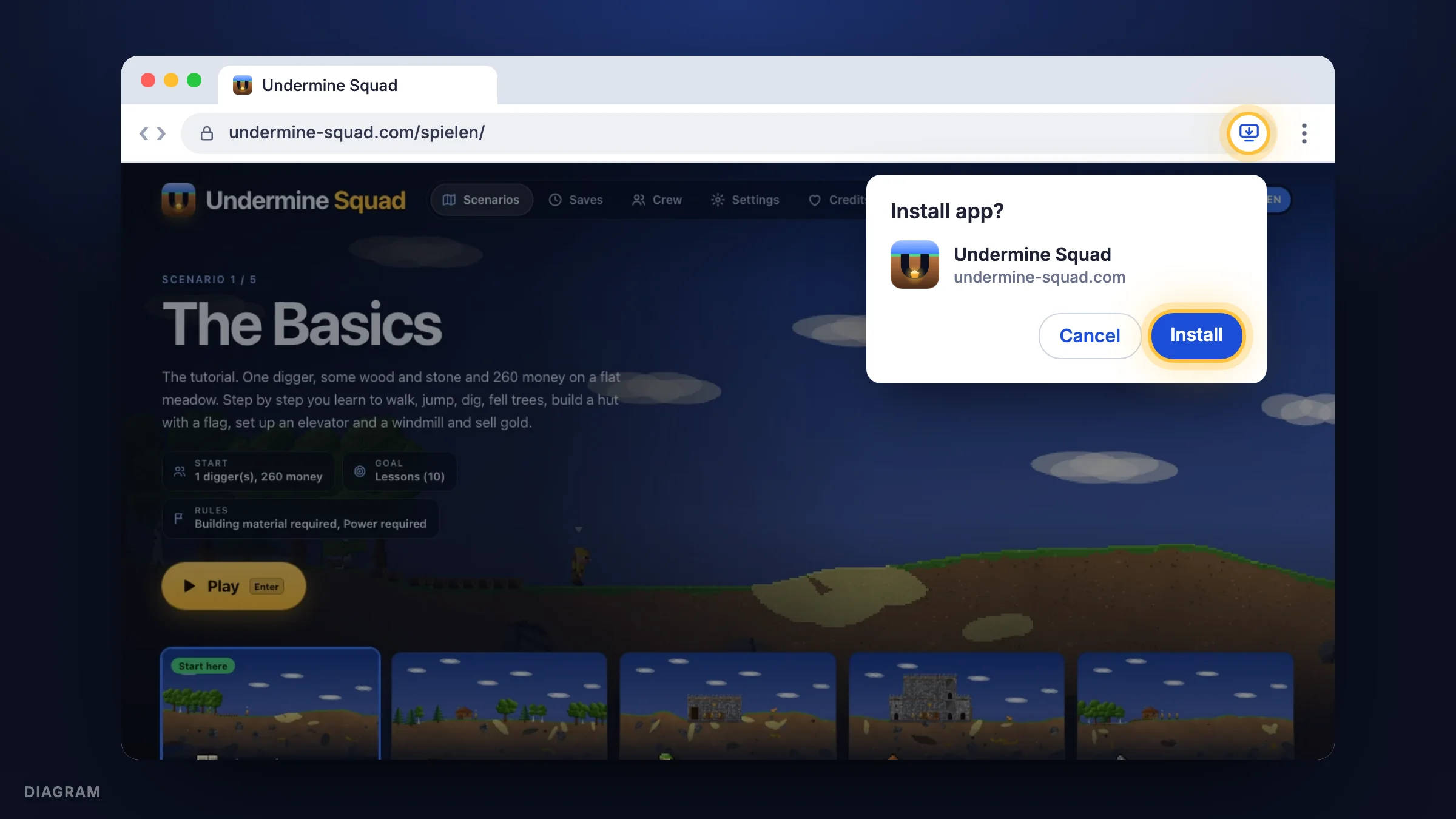
Click Install as app in the main menu, or the install icon on the right of the address bar (a screen with a downward arrow).
-
Confirm with Install. Undermine Squad opens in its own window and from then on sits in the Start menu, the Dock or the launcher.
Android
Section titled “Android”-
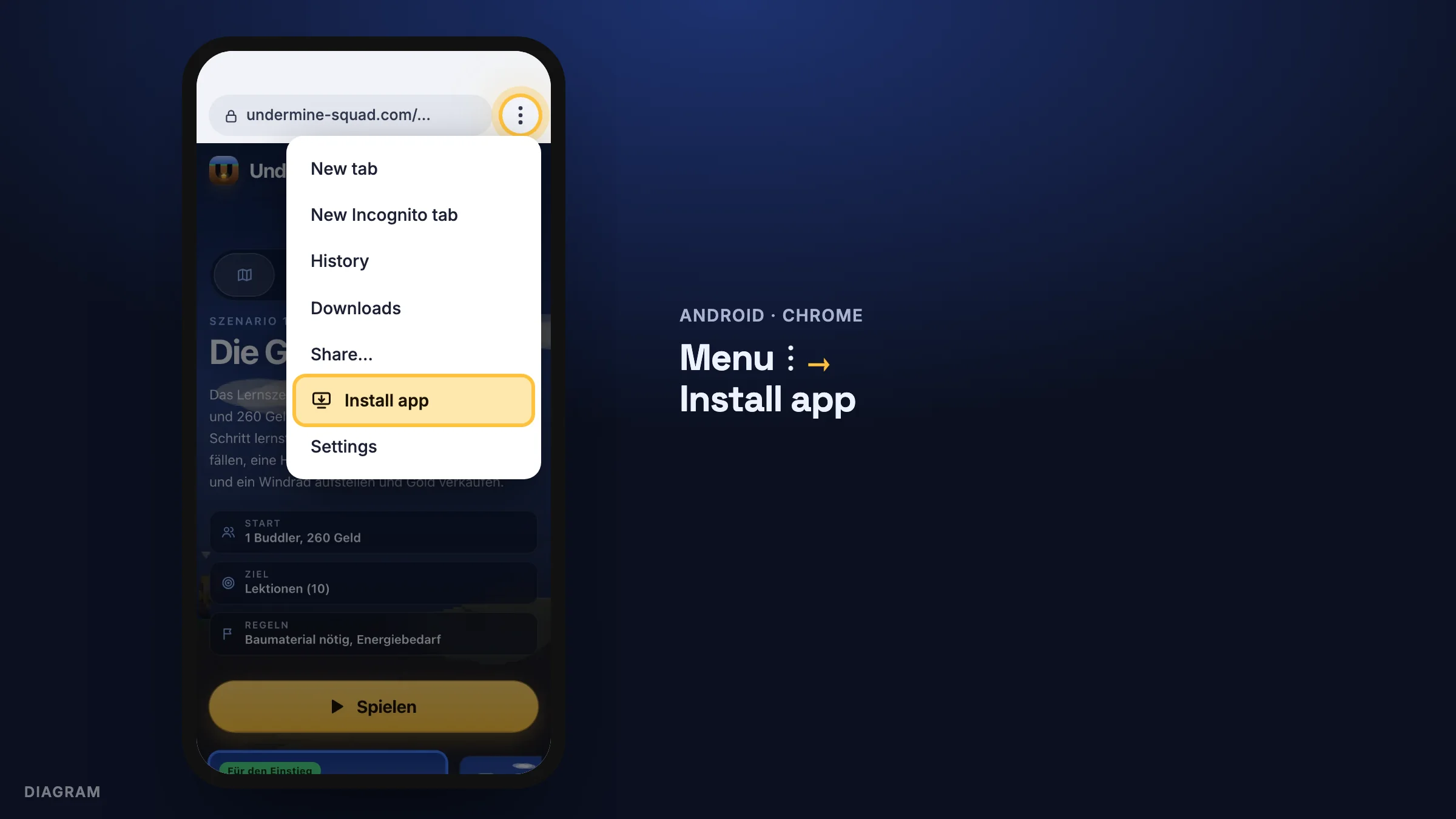
Open undermine-squad.com/spielen in Chrome.
-
Tap Install as app in the main menu. Or tap the menu ⋮ at the top right and then Install app (on some devices Add to Home screen).
-
Confirm with Install. The icon appears on your Home screen and in the app drawer.
Samsung Internet, Edge and Firefox for Android can do it too; there the menu entry is called Add to Home screen or Install.
iPhone and iPad
Section titled “iPhone and iPad”iPhone and iPad have no install dialog; you add the game to your Home Screen via Share. This works in Safari and from iOS 16.4 also in Chrome, Edge and Firefox.
-
Open undermine-squad.com/spielen in Safari.
-
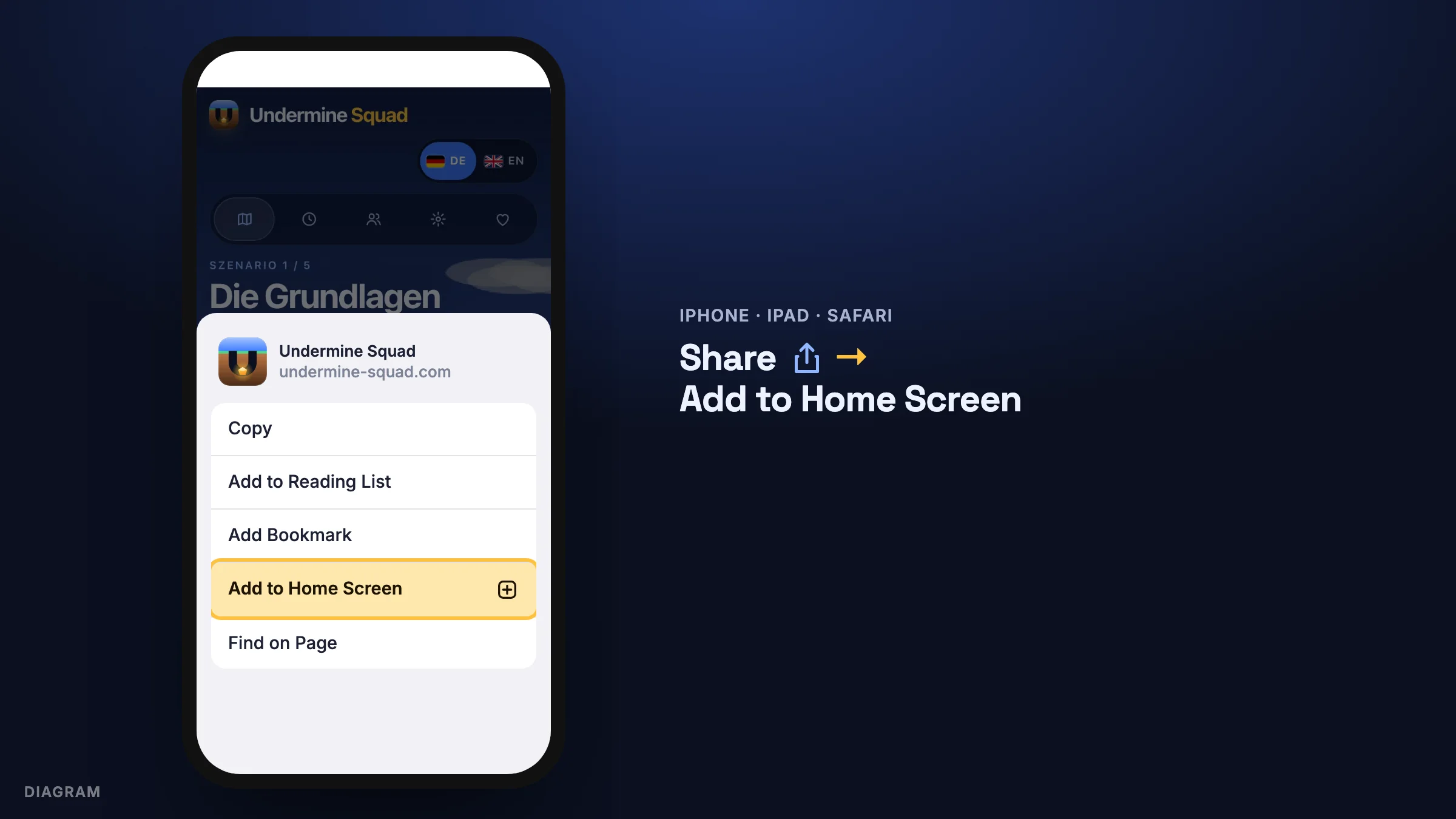
Tap Share (a square with an arrow pointing up). From iOS 26, in Safari tap … first and then Share; on iPad Share is at the top right.
-
Choose Add to Home Screen. If it is missing, scroll down the list or add it via Edit Actions.
-
Leave Open as Web App switched on and tap Add. From now on start the game from the new icon.
Safari on a Mac
Section titled “Safari on a Mac”From macOS Sonoma (Safari 17):
-
Open undermine-squad.com/spielen in Safari.
-
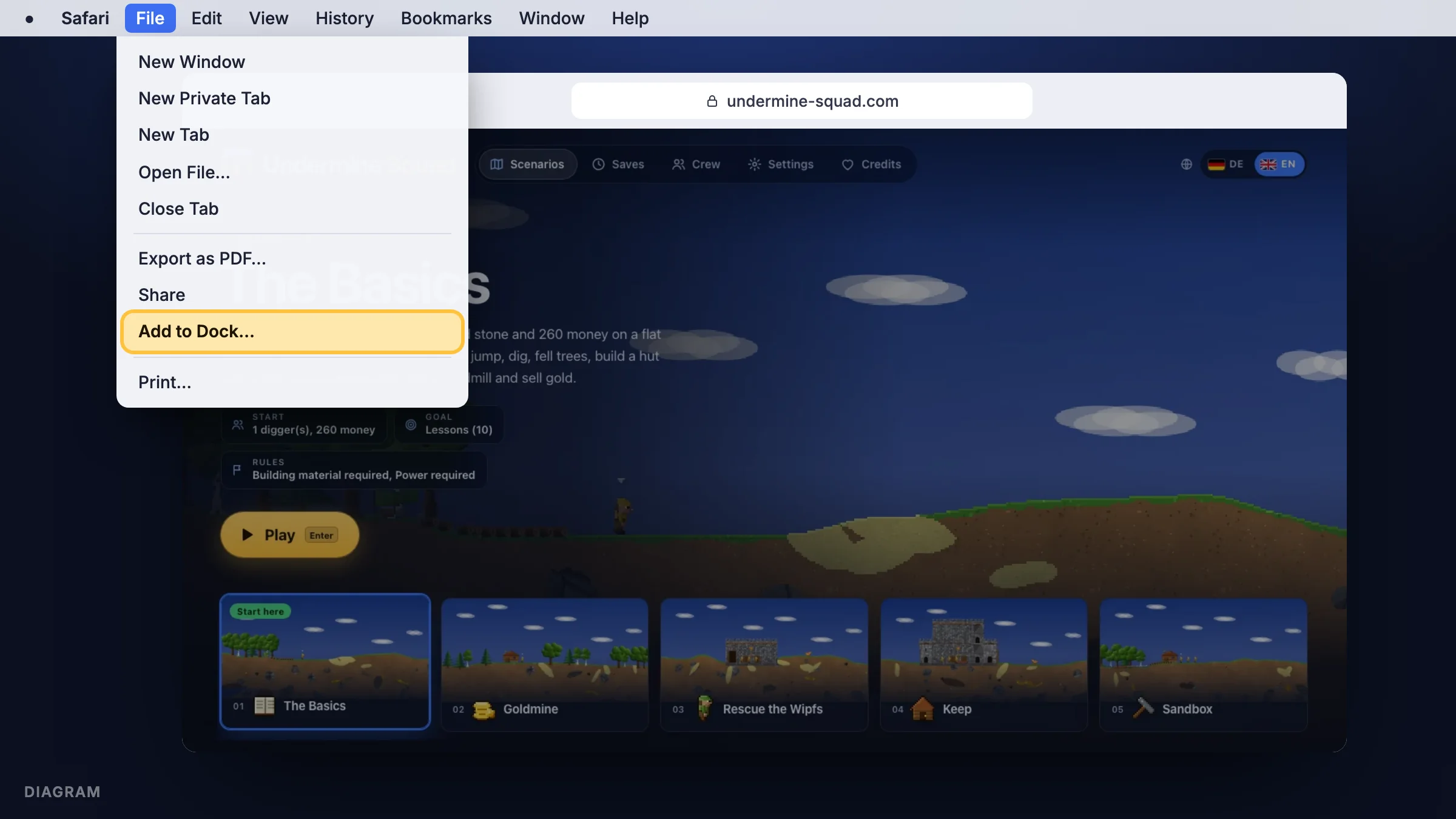
In the menu bar choose File → Add to Dock…
-
Confirm with Add. Undermine Squad now sits in the Dock and opens in its own window.
Playing offline
Section titled “Playing offline”Once loaded, the game stores its files on your device, as an app and in the browser. After that it also starts without internet, for example on a train or a plane. Saved games and crew are stored on the device too. Music loads the first time you hear it; what you have already heard plays offline as well.
New versions
Section titled “New versions”When there is a new version, the game shows New version available at the bottom with a Reload button. Your current round is saved first. What is new is in the changelog.
Removing the app
Section titled “Removing the app”Like any other app: on a phone long-press the icon and choose Remove; on a computer use the menu ⋮ in the app window and Uninstall (Chrome, Edge), or drag the icon out of the Dock and delete it from the Applications folder in your home folder (Safari). Saved games in the browser are not affected.
Undermine Squad 0.1 · „Clonk“ is a registered trademark of Matthes Bender. Undermine Squad is an independent game.